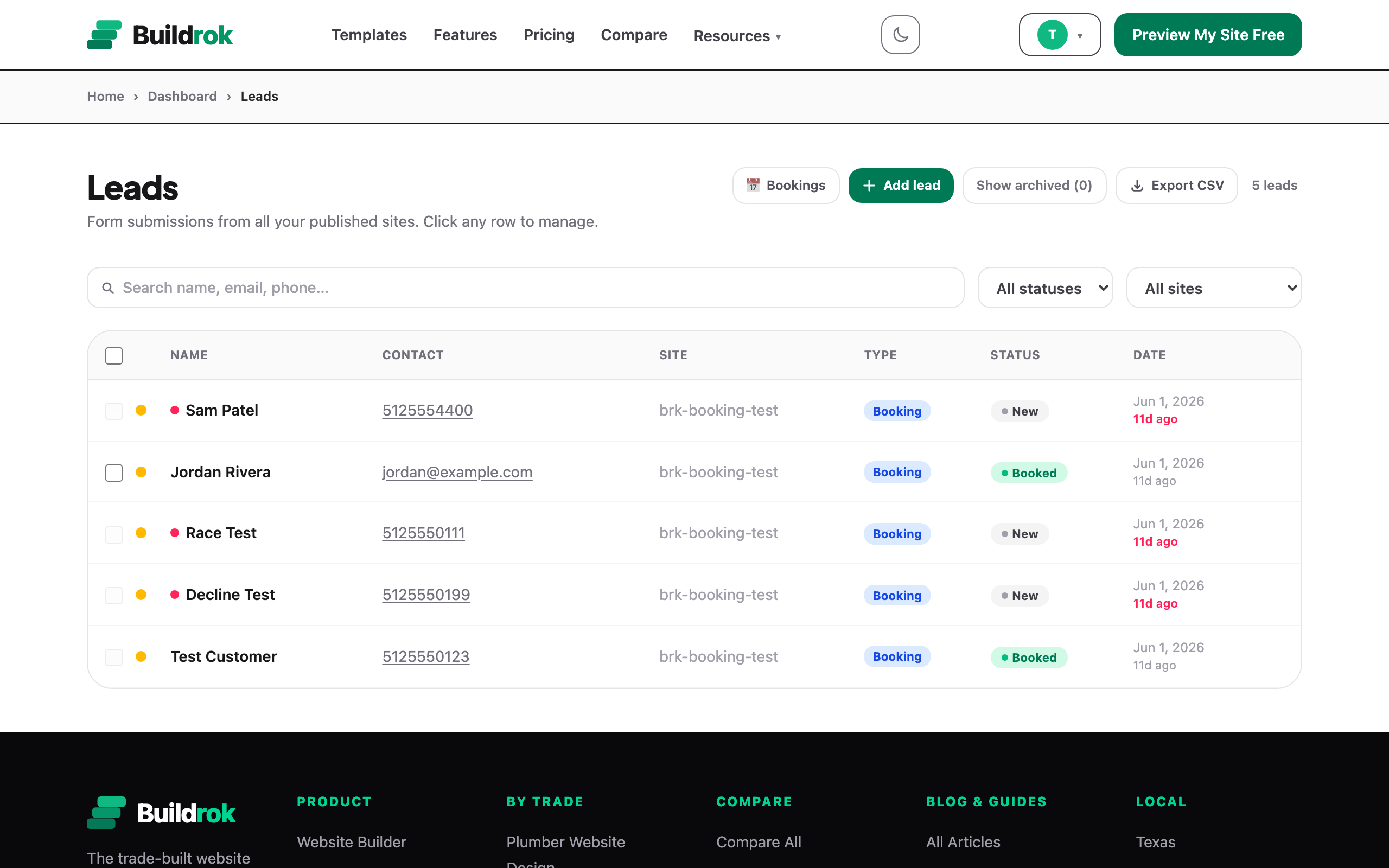
Every form on your site feeds one place: the Leads inbox in your dashboard at buildrok.com/app/leads. Quote requests, contact messages, and booking requests all land there, tagged by type, so nothing lives in a separate inbox you might forget to check.
How You Hear About A New Lead
- Email, every time. Each new lead triggers an email with the visitor's details and one-tap shortcuts to call them, reply by email, or text them back.
- Text message, if you want it. Add a textable mobile number to your site's business details and Buildrok also sends a short SMS when a lead arrives. Speed-to-lead wins jobs, and a text is hard to miss on a job site.
The visitor isn't left hanging either: they receive a branded confirmation email so they know their request went through. You can customize that message per site, or switch it off.
The Five-Stage Pipeline
The Leads inbox is a lightweight pipeline, not just a list. Each lead moves through five stages:
- New. Just arrived, not yet actioned.
- Contacted. You've called, texted, or emailed back.
- Quoted. You've given them a price.
- Booked. The job is on.
- Lost. Didn't work out. Keeping these marked keeps your inbox honest.
You can also flag a priority on each lead (High, Medium, Low) so the urgent jobs float to the top of your attention, and use the built-in reply templates for the common moments: following up, sending a quote, confirming a booking, or chasing a missed call.
Accepting And Declining Booking Requests
If your site takes online bookings, booking requests appear in the same inbox with the requested time slot attached. Each one shows its own status: Pending Your Response, Confirmed, or Declined. Accept and the slot is locked in; decline and the customer is notified so they can pick another time. Requests you don't answer within your hold window expire on their own. The full booking setup lives in Taking Online Bookings.
Spam Protection Is Automatic
Every Buildrok lead form is protected by multiple layers of automatic spam filtering. Bot submissions, link-stuffed messages, and gibberish entries are caught before they reach you. There's nothing to install or configure, and real customers never see a CAPTCHA hoop to jump through on the standard form.
Attachments And Details
Leads carry everything the visitor submitted: service, frequency, address, dates, vehicle or yard details depending on your trade's form, plus any photos or documents they attached. Open a lead to see the full picture before you call back.
Common Questions
Do I need to set up spam protection?
No. Every Buildrok lead form ships with multiple layers of automatic spam filtering, so bots and junk submissions are blocked before they reach your inbox. There is nothing to configure.
Can I get text alerts for new leads?
Yes. Add a textable mobile number to your site's business details and Buildrok sends you a short text whenever a new lead arrives, alongside the email.
Does the visitor hear back automatically?
Yes. Visitors get a branded confirmation email when they submit your form, so they know the message landed. You can customize the message or turn the auto-reply off.
What's the difference between a lead and a booking?
Every form submission is a lead. Booking-type leads also carry a requested time slot and an accept-or-decline action; quote and contact leads are plain enquiries you reply to and move through the pipeline.
Keep Reading
Related Articles
Still Need A Hand?
Our Austin support team answers every message, usually within one business day.
Contact Support →